Best Settings to Make Android Faster in 2026

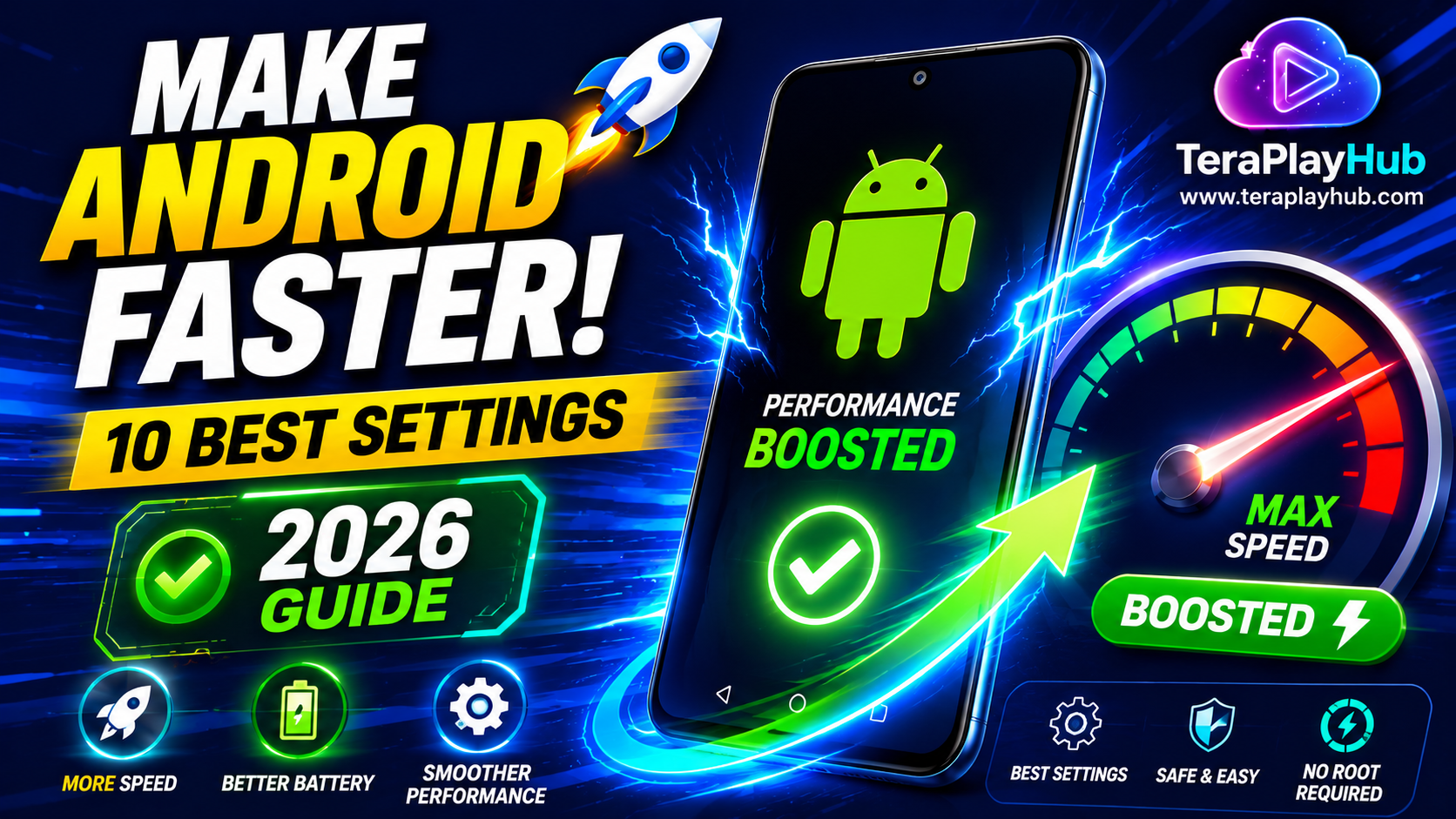
Best Settings to Make Android Faster in 2026
Android phones have become more powerful than ever, but even modern devices can slow down over time. Apps take longer to open, multitasking becomes frustrating, and everyday tasks may not feel as smooth as they once did.
The good news is that you don't need expensive software or root access to improve performance. Simply changing a few important settings can make a noticeable difference.
In this guide, you'll learn the best Android settings to change in 2026 to make your phone faster, smoother, and more responsive.
Why Android Phones Become Slow
Before adjusting settings, it's important to understand what causes slowdowns.
Common reasons include:
- Too many background apps
- Low storage space
- Heavy animations
- Excessive syncing
- Outdated software
- Too many widgets
- Battery optimization issues
Thankfully, many of these problems can be fixed through Android settings.
1. Reduce Animation Speed
Animations make Android look smooth, but they can also make older phones feel slower.
How to Change Animation Settings
Enable Developer Options
- Open Settings
- Tap About Phone
- Tap Build Number 7 times
- Enter your PIN if required
Adjust Animation Scales
Go to:
Settings → Developer Options
Find:
- Window Animation Scale
- Transition Animation Scale
- Animator Duration Scale
Set all three to:
- 0.5x (Recommended)
or
- Off (Fastest)
Many users immediately notice a speed improvement.
2. Turn Off Unused Background Apps
Some apps continue running even when you're not using them.
These apps consume:
- RAM
- Battery
- Processor resources
How to Restrict Background Activity
Settings → Apps → Select App → Battery
Choose:
- Restricted
for apps you rarely use.
3. Disable Auto-Sync for Unnecessary Accounts
Auto-sync constantly checks for updates.
Examples include:
- Email accounts
- Social media apps
- Cloud storage services
Too much syncing can slow down performance.
How to Disable
Settings → Accounts → Auto Sync
Disable accounts that don't require constant updates.
4. Use Battery Optimization
Battery optimization helps Android manage background activity more efficiently.
Enable Battery Optimization
Settings → Battery
Turn on:
- Adaptive Battery
- Battery Optimization
This reduces resource usage from unused apps.
5. Remove Unnecessary Widgets
Widgets constantly update information.
Examples:
- Weather widgets
- News widgets
- Stock trackers
Each widget consumes memory and battery.
Keep only the widgets you actually use.
6. Free Up Storage Space
Storage directly impacts Android performance.
When storage becomes nearly full:
- Apps load slower
- Updates take longer
- System responsiveness decreases
Recommended Free Space
Try to keep:
- At least 10% to 15% storage free
Delete:
- Unused apps
- Duplicate photos
- Old videos
- Large downloads
7. Clear Cached Data
Cache files help apps load faster, but excessive cache can become problematic.
Clear Cache
Settings → Apps → Select App → Storage → Clear Cache
Focus on:
- Chrome
- YouTube
8. Disable Unused System Features
Many phones enable features you may never use.
Examples:
- NFC
- Nearby Share
- Bluetooth scanning
- Wi-Fi scanning
Disabling unnecessary features can improve efficiency.
9. Keep Android Updated
Software updates often include:
- Bug fixes
- Security patches
- Performance improvements
Always install stable updates when available.
10. Keep Apps Updated
Outdated apps can cause:
- Crashes
- Memory leaks
- Performance issues
Open Google Play Store regularly and update installed apps.
11. Use Lite Apps
Lite versions use fewer resources.
Examples include:
- Facebook Lite
- Messenger Lite
- Google Go
These apps are ideal for older phones.
12. Enable Adaptive Performance Features
Many Android manufacturers include smart optimization tools.
Examples:
Samsung
- Device Care
- Auto Optimization
Xiaomi
- Security App Optimization
Realme & OnePlus
- Phone Manager
These built-in tools can improve overall performance.
13. Reduce Home Screen Clutter
A crowded home screen requires additional processing.
Try to:
- Remove unused shortcuts
- Limit widgets
- Use simple wallpapers
Minimal setups often perform better.
14. Disable Live Wallpapers
Live wallpapers look attractive but consume:
- Battery
- RAM
- GPU resources
Switching to a static wallpaper can improve performance.
15. Restart Your Phone Weekly
Many users never restart their devices.
Restarting helps:
- Clear temporary memory
- Stop stuck processes
- Refresh system resources
A weekly restart can improve stability.
Settings You Should Avoid Changing
Not all settings improve performance.
Avoid:
- Random developer settings
- Aggressive RAM cleaner apps
- Fake optimization tools
- Unknown battery-saving apps
These often cause more problems than they solve.
Best Android Settings Checklist
For maximum speed:
✅ Animation Scale: 0.5x
✅ Adaptive Battery: ON
✅ Battery Optimization: ON
✅ Storage Free Space: 10%+
✅ Unused Apps Removed
✅ Widgets Reduced
✅ Cache Cleaned
✅ Apps Updated
✅ Android Updated
✅ Weekly Restart
Frequently Asked Questions
Do animation settings really make Android faster?
They don't increase hardware speed, but they make the phone feel much faster by reducing visual delays.
Does clearing cache improve performance?
Yes. Large cache files can slow apps and consume storage.
Should I use RAM booster apps?
Most modern Android phones manage RAM automatically. RAM booster apps rarely provide meaningful improvements.
How often should I restart my Android phone?
Once every week is generally sufficient.
Final Verdict
You don't need a new phone to enjoy better Android performance.
Simple changes such as:
- Reducing animations
- Freeing storage
- Restricting background apps
- Updating software
- Using battery optimization
can significantly improve speed and responsiveness.
By applying the settings in this guide, most Android users can enjoy a faster, smoother experience without rooting or spending money on expensive optimization tools.
Most Popular Posts

How to Use TeraBox on Smart TV (Samsung, Android TV & Fire TV)

TeraBox for PC: Web Version vs Desktop App (Complete 2026 Comparison Guide)

TeraBox Storage Full? How to Clean Up and Manage 1TB Data Efficiently
How to Share TeraBox Files Safely in 2026 (Private Links, Passwords & Security Tips)
Fix Video Audio Codec Problems on Android & Windows (2026)