How to Backup Android Photos to TeraBox Automatically (2026 Guide)

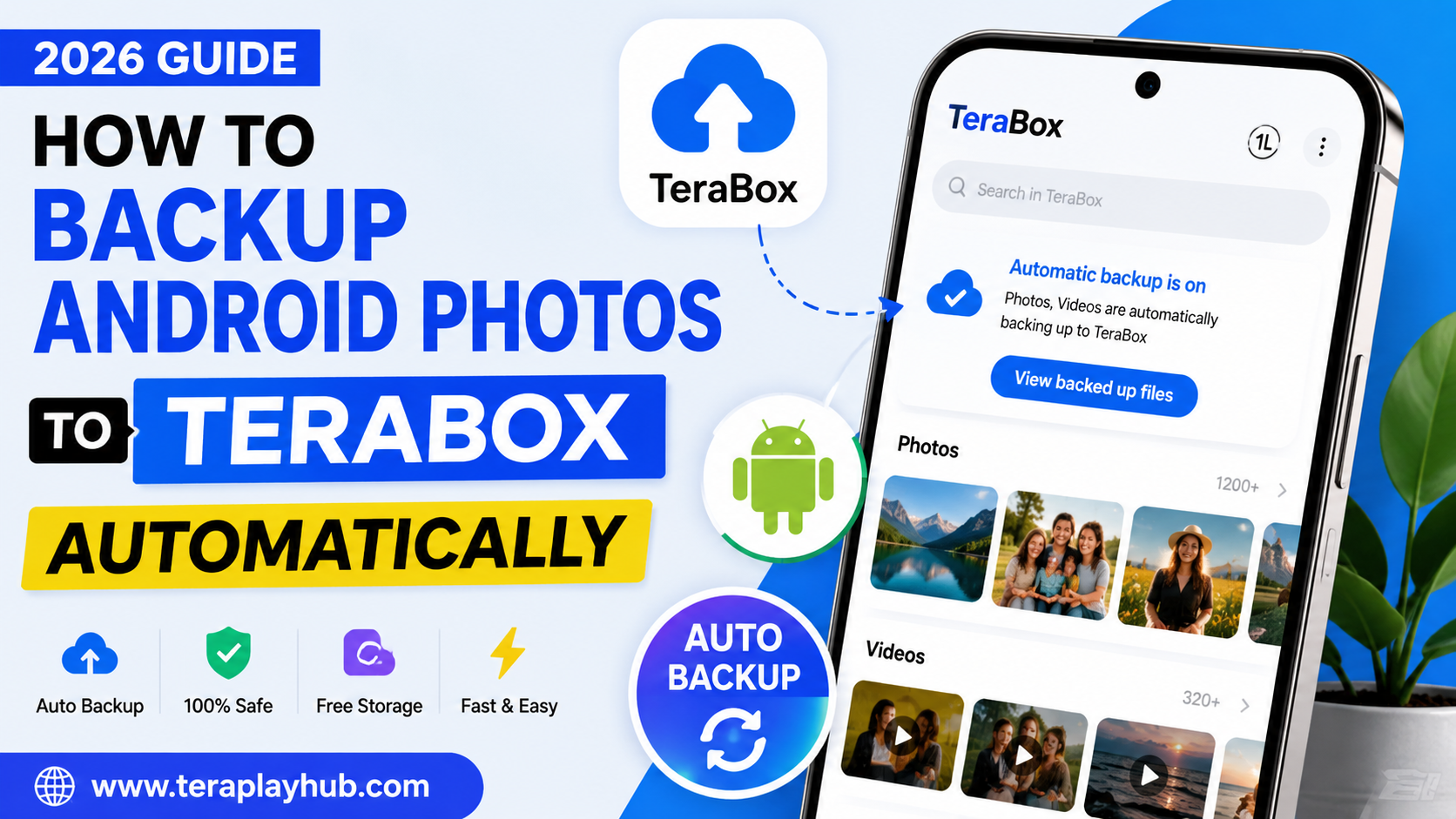
How to Backup Android Photos to TeraBox Automatically (2026 Guide)
Losing important photos from your Android phone can be frustrating. Whether it’s family memories, travel pictures, screenshots, or videos, nobody wants to lose their files because of a phone reset, accidental deletion, or storage issue.
That’s why cloud backup services like TeraBox have become very popular in 2026. TeraBox offers free cloud storage and automatic backup features that help Android users safely store their photos and videos online without needing technical knowledge.
In this complete beginner-friendly guide, you will learn:
- How to install TeraBox on Android
- How to enable automatic photo backup
- How to sync videos and screenshots
- How to manage storage efficiently
- Tips to keep your files safe and organized
Let’s start step by step.
What is TeraBox?
TeraBox is a cloud storage application that allows users to store photos, videos, documents, and other files online. One of its biggest advantages is that it offers a large amount of free cloud storage compared to many other services.
With the automatic backup feature, your Android phone can upload photos and videos directly to the cloud without manually transferring files every time.
This helps users:
- Save phone storage space
- Protect memories from accidental loss
- Access files from multiple devices
- Restore files after changing phones
Why You Should Backup Android Photos Automatically
Many users only realize the importance of backups after losing their files. Automatic backup provides peace of mind because your files are saved regularly in the background.
Here are some major benefits:
1. Protect Important Memories
Photos and videos often contain personal moments that cannot be replaced. Cloud backup keeps them safe even if your phone is damaged or lost.
2. Free Up Storage Space
Modern smartphone cameras create large image and video files. Automatic cloud backup allows you to remove local copies and save storage space.
3. Easy Device Switching
When upgrading to a new Android phone, you can quickly access your backed-up photos from TeraBox.
4. Access Files Anywhere
You can view your files from another phone, tablet, or computer simply by logging into your account.
How to Install TeraBox on Android
Follow these simple steps to install the application:
Step 1: Open Google Play Store
Unlock your Android phone and open the Play Store.
Step 2: Search for TeraBox
Type TeraBox in the search bar and find the official app.
Step 3: Install the App
Tap the install button and wait for the application to download.
Step 4: Create an Account
Open the app and sign up using:
- Google account
- Email address
- Facebook account
- Apple ID (on supported devices)
After login, your cloud storage will become available.
How to Enable Automatic Photo Backup
Once TeraBox is installed, you can enable automatic uploads in just a few minutes.
Step 1: Open the TeraBox App
Launch the application from your Android home screen.
Step 2: Go to Profile or Settings
Tap your profile icon or settings option.
Step 3: Find Automatic Backup
Look for options like:
- Auto Backup
- Automatic Upload
- Camera Upload
Different app versions may use slightly different names.
Step 4: Enable Photo Backup
Turn on the photo backup option.
The app may ask for permission to access:
- Photos
- Videos
- Storage
- Media files
Allow all necessary permissions.
Step 5: Choose Backup Folders
Select which folders you want to upload automatically.
Common options include:
- Camera
- Screenshots
- WhatsApp Images
- Downloads
- Videos
Choose only important folders to save cloud space and mobile data.
How to Backup Videos Automatically
Videos consume more storage than photos, but they are often more important.
To enable video backup:
- Open TeraBox settings
- Go to Auto Backup
- Enable Video Upload
- Select preferred folders
For better performance, many users prefer uploading videos only on Wi-Fi connections.
Best Settings for Faster Backup
Here are some recommended settings for smooth and fast backups.
Use Wi-Fi Only
Uploading large files using mobile data may consume your internet package quickly.
Enable:
Upload Only on Wi-Fi
This saves data and improves upload stability.
Keep Battery Optimization Disabled
Some Android phones stop background apps automatically to save battery.
If backups stop unexpectedly:
- Open Phone Settings
- Go to Battery
- Find Battery Optimization
- Select TeraBox
- Choose “Don’t Optimize”
This helps the app continue uploading files properly.
Enable Background Activity
Allow TeraBox to run in the background so uploads continue even when the app is minimized.
How to Check if Your Photos Are Backed Up
To confirm your files are uploaded successfully:
- Open TeraBox
- Go to Photos or Cloud Files
- Check recently uploaded images
You can also log into your account on another device and verify your files are available online.
Tips to Organize Your Cloud Storage
Keeping your cloud storage organized makes it easier to find files later.
Create Folders
Separate files into folders like:
- Family Photos
- Travel
- Work
- Screenshots
- Videos
Delete Duplicate Files
Sometimes the same image gets uploaded multiple times.
Regularly remove duplicates to save storage.
Rename Important Files
Instead of random names like:
IMG_20260122_001.jpg
Use meaningful names such as:
Goa_Trip_Sunset_2026.jpg
This improves file searching later.
Is TeraBox Safe for Photo Backup?
Many users ask whether TeraBox is safe for storing personal files.
In general, cloud storage platforms provide security systems to protect user data, but users should also follow basic safety practices.
Recommended Safety Tips
- Use a strong password
- Enable two-factor authentication if available
- Avoid sharing private files publicly
- Regularly review account activity
For highly sensitive personal data, always use additional caution before uploading online.
Common Backup Problems and Solutions
Photos Not Uploading
Possible Reasons:
- Weak internet connection
- Battery optimization enabled
- Background activity blocked
Fix:
- Connect to stable Wi-Fi
- Disable battery restrictions
- Reopen the app
Backup Stuck at 0%
Solution:
- Restart the app
- Clear cache
- Update the application
- Restart the phone
Storage Full Warning
Delete unnecessary cloud files or move large videos to another storage device.
How to Restore Photos from TeraBox
If you accidentally delete photos from your Android phone, you can restore them easily.
Steps to Restore Files
- Open TeraBox
- Locate the uploaded file
- Tap Download
- Save it back to your phone
This is especially useful when changing devices or after factory reset.
TeraBox vs Other Cloud Backup Apps
Many users compare TeraBox with services like Google Photos or Dropbox.
Here are some general advantages:
| Feature | TeraBox | Many Other Apps |
|---|---|---|
| Free Storage | Large | Limited |
| Auto Backup | Yes | Yes |
| Android Support | Yes | Yes |
| File Access Anywhere | Yes | Yes |
| Video Backup | Yes | Sometimes Limited |
The right choice depends on your storage needs and personal preferences.
Final Thoughts
Automatic photo backup is one of the smartest things Android users can enable in 2026. Phones can be lost, damaged, or reset at any time, but cloud backups help keep your memories safe.
TeraBox makes the process simple for beginners by providing automatic uploads, cloud storage access, and easy file management.
If you regularly capture photos and videos on your Android phone, setting up automatic backup today can save you from major data loss problems in the future.
Take a few minutes to configure your backup settings properly, and your important memories will stay protected and accessible anytime you need them.
Frequently Asked Questions (FAQ)
Does TeraBox backup photos automatically?
Yes, TeraBox supports automatic photo and video backup on Android devices.
Is TeraBox free to use?
TeraBox offers free cloud storage with optional premium features depending on user needs.
Can I backup WhatsApp images to TeraBox?
Yes, you can select the WhatsApp Images folder during backup setup.
Does automatic backup use mobile data?
It can, but users can enable Wi-Fi-only uploads in settings.
Can I recover deleted photos from TeraBox?
Yes, uploaded photos can usually be downloaded again from your cloud storage account.
Is TeraBox available for Android and PC?
Yes, TeraBox is available on Android devices and can also be accessed from desktop browsers and computers.
Most Popular Posts

How to Use TeraBox on Smart TV (Samsung, Android TV & Fire TV)

TeraBox for PC: Web Version vs Desktop App (Complete 2026 Comparison Guide)

TeraBox Storage Full? How to Clean Up and Manage 1TB Data Efficiently
How to Share TeraBox Files Safely in 2026 (Private Links, Passwords & Security Tips)
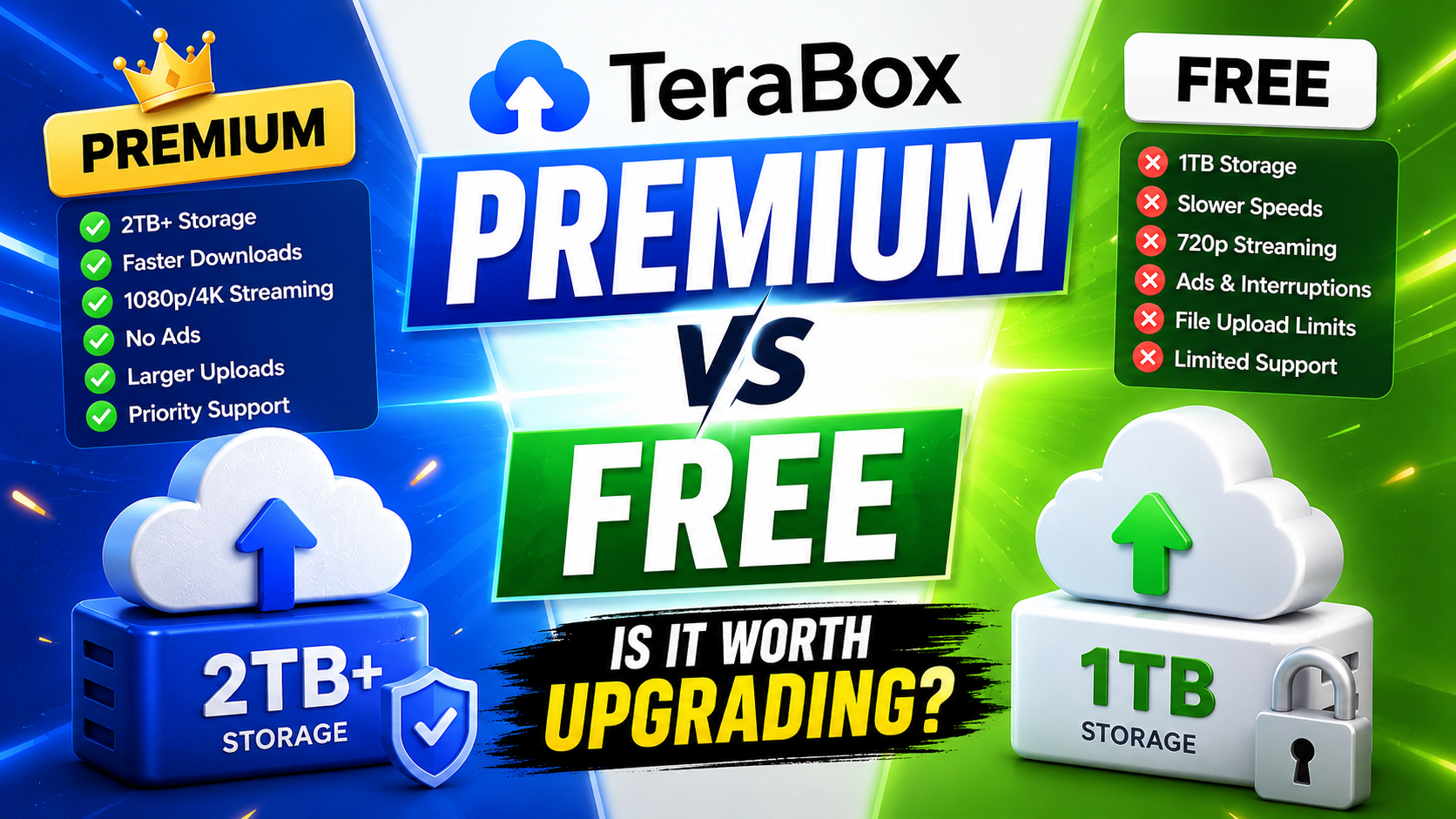
TeraBox Free vs Premium: Is Upgrading Really Worth It in 2026?