How to Play MKV Files on Android Without Lag (2026 Guide)

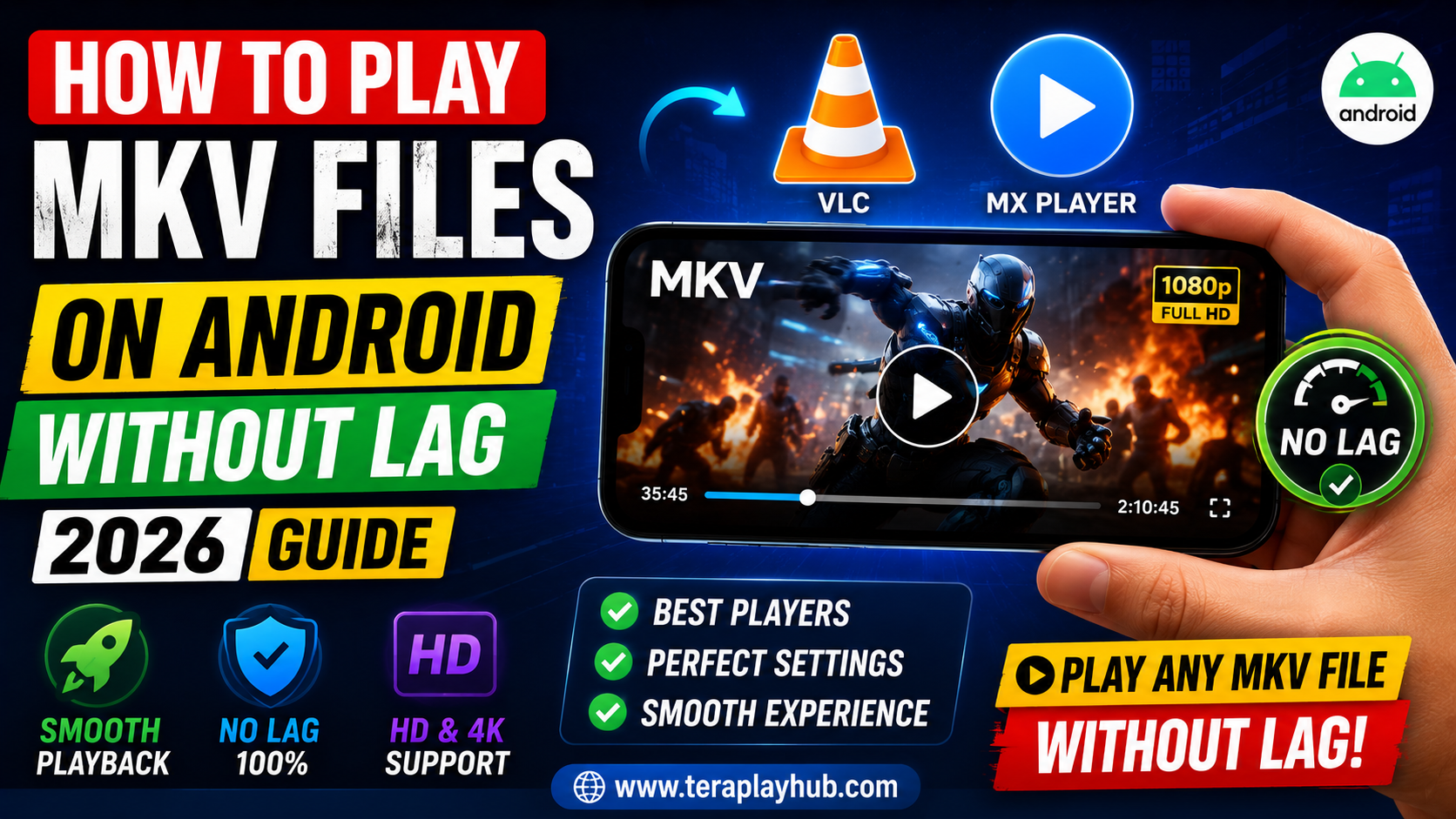
How to Play MKV Files on Android Without Lag (2026 Guide)
MKV video files are extremely popular because they support:
- High-quality video
- Multiple audio tracks
- Subtitles
- HD and 4K content
Many movies, anime, tutorials, and web series are distributed in MKV format.
However, Android users often face frustrating problems like:
- Video lag
- Audio delay
- Buffering
- Black screen
- Subtitle issues
- App crashes
If your Android phone struggles to play MKV files smoothly, don’t worry.
This beginner-friendly guide explains how to play MKV files on Android without lag using the best apps, settings, and optimization tips in 2026.
Everything is explained in simple language.
What is an MKV File?
MKV stands for:
Matroska Video Format
It is a powerful multimedia container format that can store:
- Video
- Audio
- Subtitles
- Chapters
- Multiple language tracks
inside one file.
MKV is commonly used for:
- HD movies
- 4K videos
- Anime
- TV shows
- Web series
because it supports high-quality compression.
Why MKV Files Lag on Android
Not all Android devices handle MKV files properly.
Lag usually happens because of:
- Weak processor
- Unsupported codec
- Low RAM
- Poor video player
- Corrupted file
- Background apps
- High-resolution video
Understanding the cause helps fix the issue faster.
Best Apps to Play MKV Files on Android
Using the right video player is the biggest solution.
Some Android players are much better optimized for MKV playback.
1. VLC Media Player
VLC is one of the best free video players available.
Why VLC is Popular
- Supports MKV files
- No extra codec needed
- Smooth playback
- Subtitle support
- Hardware acceleration
Advantages
- Completely free
- No ads in most versions
- Stable performance
- Supports almost every format
Best For
- Beginners
- HD playback
- Subtitle-heavy videos
2. MX Player
MX Player remains one of the most popular Android video players.
Main Features
- Hardware decoding
- Gesture controls
- Subtitle support
- Fast performance
Why Users Like It
MX Player performs very well on low-end Android phones.
It also supports custom codecs for difficult video formats.
3. Nova Video Player
Nova Player is lightweight and optimized for Android TV and mobile devices.
Good For
- Large video libraries
- Streaming local media
- Smooth HD playback
4. KMPlayer
KMPlayer supports:
- 4K playback
- MKV videos
- Advanced subtitle control
It works well for modern Android devices.
Enable Hardware Acceleration
Hardware acceleration is one of the most important settings for smooth playback.
It allows the phone’s GPU to process video more efficiently.
How to Enable Hardware Acceleration in VLC
Steps
- Open VLC
- Go to Settings
- Select: Hardware Acceleration
- Choose: Full Acceleration
This reduces CPU load and improves playback performance.
How to Enable HW Decoder in MX Player
Steps
- Open MX Player
- Go to Settings
- Open Decoder Settings
- Enable:
- HW Decoder
- HW+ Decoder
This significantly improves MKV playback.
Reduce Background Apps
Too many apps running in the background consume:
- RAM
- CPU power
- Battery
This can cause video lag.
Quick Fix
Before playing videos:
- Close unused apps
- Clear recent apps
- Restart the phone if necessary
This frees system resources.
Check Video Resolution
Some phones cannot handle very high-resolution videos smoothly.
Common Problem
Trying to play:
- 4K HDR videos
- High bitrate movies
on budget phones may create lag.
Recommended Solutions
| Device Type | Recommended Video Quality |
|---|---|
| Budget Phones | 720p |
| Mid-Range Phones | 1080p |
| Flagship Phones | 4K |
Using appropriate resolution improves playback.
Update Your Video Player
Outdated apps may contain bugs or unsupported codecs.
Always keep your video player updated from:
- Google Play Store
- Official website
New updates improve:
- Stability
- Codec support
- Performance
What are Codecs?
Codecs help devices decode and play video formats properly.
Some MKV files use advanced codecs like:
- H.264
- H.265 (HEVC)
- AV1
Older phones may struggle with newer codecs.
Install Custom Codec Packs (MX Player)
Some MKV videos require additional codec support.
MX Player allows custom codec installation.
This improves compatibility with difficult files.
Use External Subtitles Carefully
Heavy subtitle rendering can sometimes slow playback.
Tips
- Use lightweight subtitle files
- Avoid animated subtitles
- Disable unnecessary subtitle effects
This helps smoother performance.
Free Storage Space Matters
Low storage can reduce Android performance.
Try keeping at least:
5GB free storage
for smoother video playback.
Delete:
- Junk files
- Old downloads
- Unused apps
if necessary.
Restart Your Device Occasionally
Many users never restart their phones.
Restarting helps:
- Clear temporary memory
- Improve performance
- Stop background processes
A simple restart often fixes playback lag.
Internet Streaming vs Offline Playback
Streaming large MKV files online requires fast internet.
If Streaming Causes Lag
Try:
- Downloading the file first
- Using stable WiFi
- Lowering streaming quality
Offline playback is usually smoother.
Best Settings for Smooth MKV Playback
Recommended Configuration
| Setting | Recommended Option |
|---|---|
| Hardware Acceleration | Enabled |
| Background Apps | Closed |
| Video Resolution | Device Compatible |
| Storage Space | At least 5GB free |
| Video Player | VLC or MX Player |
These settings improve overall playback stability.
Why Some MKV Files Still Lag
Sometimes the problem is the file itself.
Possible causes include:
- Corrupted file
- Poor encoding
- Extremely high bitrate
- Unsupported audio format
Testing another file helps identify the issue.
Best Android Phones for MKV Playback
Modern phones with powerful processors handle MKV files better.
Good Features for Smooth Playback
- Snapdragon processors
- 6GB+ RAM
- AMOLED display
- Good GPU performance
Budget devices may struggle with heavy 4K videos.
Battery Saving Mode Can Reduce Performance
Battery saver mode often limits CPU and GPU speed.
This can create lag during video playback.
Solution
Disable battery saver while watching videos.
Frequently Asked Questions
Which is the best MKV player for Android?
VLC and MX Player are among the best options in 2026.
Why is my MKV video lagging?
Usually because of:
- Unsupported codec
- Weak hardware
- High-resolution video
- Poor player settings
Can Android play 4K MKV files?
Yes, but smooth playback depends on device performance.
Is VLC better than MX Player?
Both are excellent.
- VLC is simpler and fully free
- MX Player offers more advanced controls
Final Words
MKV files provide excellent video quality, but smooth playback on Android depends heavily on:
- Device performance
- Video player
- Codec support
- Proper settings
Thankfully, most lag problems can be fixed easily using:
- VLC Media Player
- MX Player
- Hardware acceleration
- Storage optimization
- Correct video resolution
For most users, simply switching to a better video player and enabling hardware decoding solves the issue immediately.
We hope this complete 2026 guide helped you understand how to play MKV files on Android without lag.
Most Popular Posts
How to Use TeraBox on Smart TV (Samsung, Android TV & Fire TV)
TeraBox for PC: Web Version vs Desktop App (Complete 2026 Comparison Guide)
TeraBox Storage Full? How to Clean Up and Manage 1TB Data Efficiently
How to Share TeraBox Files Safely in 2026 (Private Links, Passwords & Security Tips)
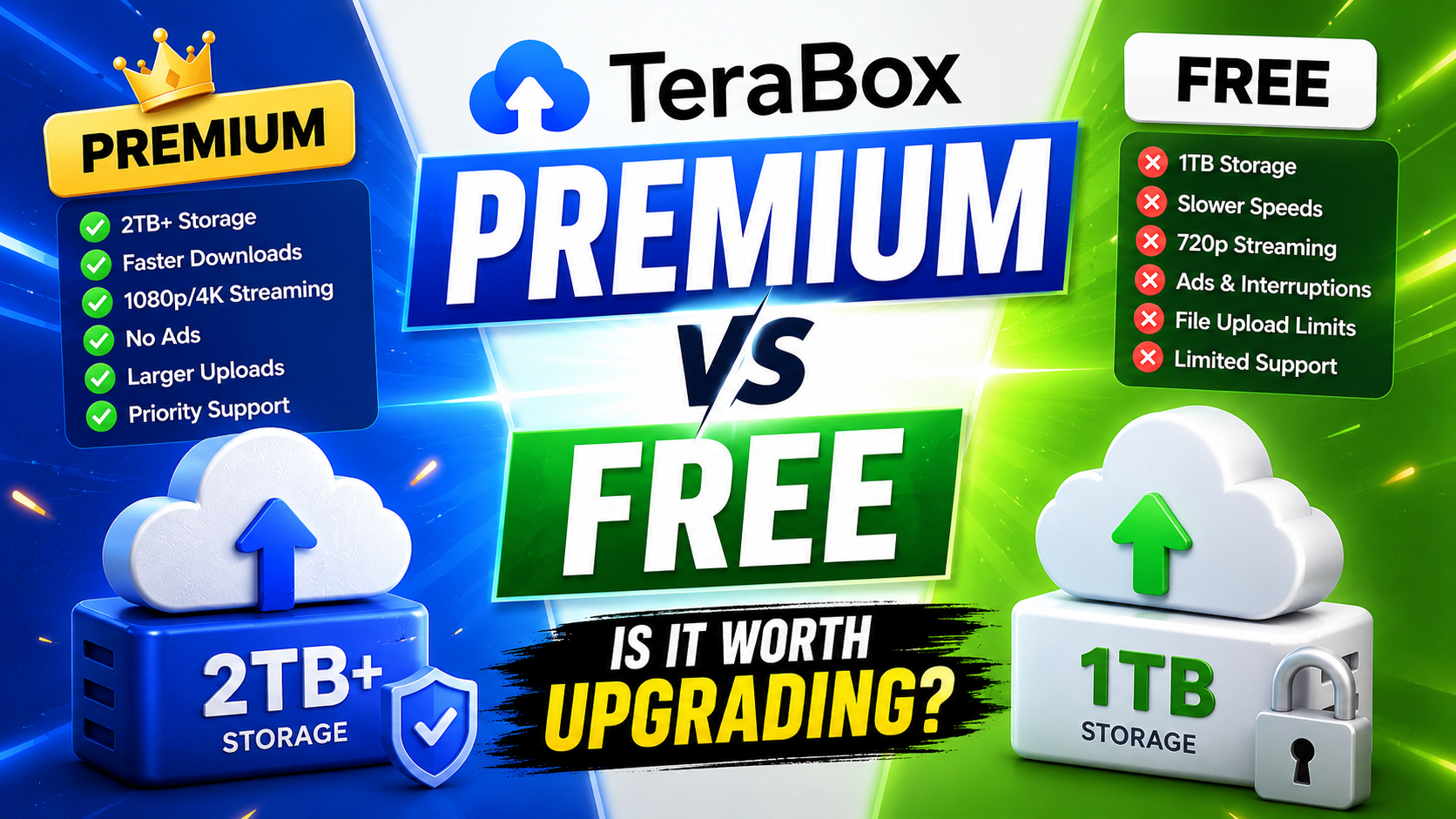
TeraBox Free vs Premium: Is Upgrading Really Worth It in 2026?