How to Reduce Mobile Data Usage on Android (2026 Complete Guide)

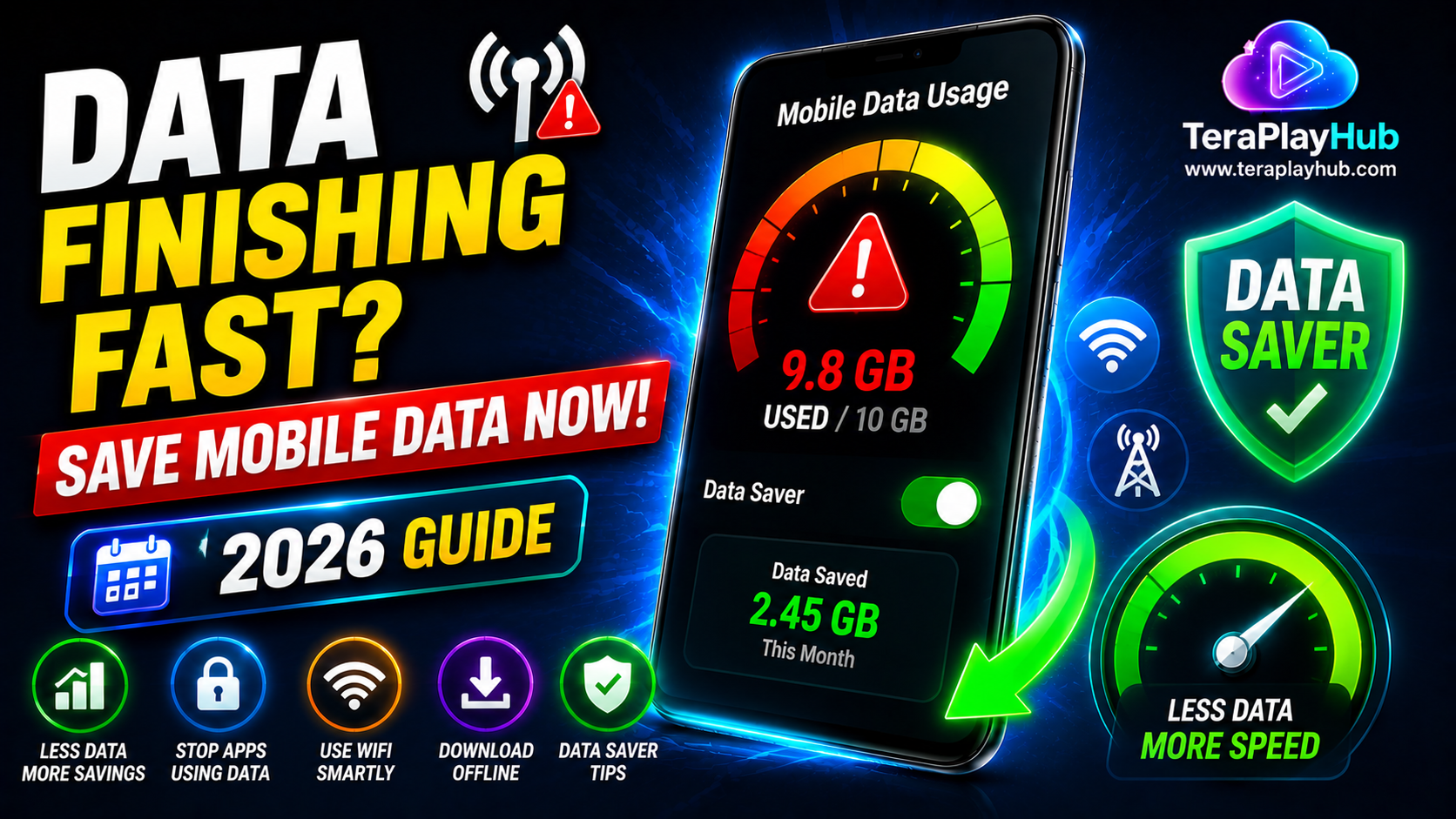
How to Reduce Mobile Data Usage on Android (2026 Complete Guide)
Mobile data has become an essential part of everyday life. Whether you're browsing websites, streaming videos, using social media, or downloading files, your Android phone constantly uses internet data.
However, many users discover that their monthly data allowance runs out much faster than expected.
The good news is that Android provides several built-in tools and settings that can significantly reduce data consumption without affecting your daily experience.
In this guide, you'll learn the best ways to reduce mobile data usage on Android and make your data plan last longer.
Why Mobile Data Runs Out Quickly
Several factors can increase data usage, including:
- HD video streaming
- Social media apps
- Background app syncing
- Automatic updates
- Cloud backups
- Large downloads
- Video calls
Understanding where your data is being used is the first step toward reducing consumption.
Check Which Apps Use the Most Data
Before changing settings, identify the apps consuming the most data.
Steps
- Open Settings
- Tap Network & Internet
- Select Data Usage
- View App Data Usage
You may be surprised by which apps consume the most bandwidth.
Enable Android Data Saver Mode
Android includes a built-in Data Saver feature.
This limits:
- Background data usage
- Automatic syncing
- Unnecessary internet activity
Enable Data Saver
Settings → Network & Internet → Data Saver → ON
This is one of the easiest ways to reduce monthly data usage.
Restrict Background Data
Many apps continue using data even when you're not actively using them.
Examples include:
- TikTok
- Weather apps
- Shopping apps
Restrict Background Data
- Settings
- Apps
- Select App
- Mobile Data & Wi-Fi
- Disable Background Data
This can save a significant amount of data each month.
Use Wi-Fi Whenever Possible
Whenever available:
- Connect to home Wi-Fi
- Use office Wi-Fi
- Use trusted public Wi-Fi
Large downloads should ideally be completed over Wi-Fi instead of mobile data.
Reduce Video Streaming Quality
Video streaming is one of the biggest data consumers.
Approximate usage:
- 480p: Low
- 720p: Medium
- 1080p: High
- 4K: Extremely High
Recommendation
Use:
- 480p
- 720p
when using mobile data.
Disable Auto-Play Videos
Social media platforms often autoplay videos automatically.
Apps include:
- TikTok
- X
Disable autoplay when using mobile data.
Download Content Over Wi-Fi
Many apps support offline downloads.
Examples:
- YouTube
- Netflix
- Spotify
- Podcasts
Download content on Wi-Fi and enjoy it later without using mobile data.
Limit Cloud Backups
Cloud storage apps can consume large amounts of data.
Examples:
- Google Photos
- Google Drive
- OneDrive
- Dropbox
- TeraBox
Recommendation
Enable:
"Upload only on Wi-Fi"
for all backup services.
Disable Automatic App Updates
Google Play Store updates apps automatically by default.
Change Update Settings
- Open Play Store
- Settings
- Network Preferences
- Auto-update Apps
- Choose Wi-Fi Only
This prevents unexpected data usage.
Use Lite Versions of Apps
Lite apps consume less:
- Data
- Battery
- Storage
Examples include:
- Facebook Lite
- Messenger Lite
- TikTok Lite
These are especially useful on limited data plans.
Monitor Monthly Data Usage
Android allows you to set data warnings.
Set Data Limit
Settings → Data Usage → Billing Cycle
Configure:
- Data Warning
- Data Limit
This helps avoid overages.
Compress Data with Browsers
Modern browsers offer data-saving features.
Popular options:
- Google Chrome
- Opera Browser
These can compress web pages and reduce bandwidth consumption.
Turn Off Hotspot When Not Needed
Mobile hotspots can quickly consume large amounts of data.
Always disable hotspot sharing when not actively using it.
Disable Automatic Media Downloads
Messaging apps often download:
- Photos
- Videos
- Documents
- Voice notes
Automatically.
WhatsApp Example
Settings → Storage & Data
Disable automatic media downloads on mobile data.
Use Offline Maps
Navigation apps can use significant data.
Google Maps allows offline downloads.
Benefits
- Faster navigation
- Less data usage
- Better performance in poor signal areas
Best Android Settings for Data Saving
Recommended setup:
✅ Data Saver ON
✅ Background Data Restricted
✅ Auto Updates via Wi-Fi Only
✅ Cloud Backups via Wi-Fi Only
✅ Video Streaming at 480p or 720p
✅ Offline Downloads Enabled
✅ Auto-Play Videos Disabled
Common Mistakes That Waste Data
Streaming in HD on Mobile Data
HD and 4K video can consume huge amounts of bandwidth.
Leaving Hotspot Enabled
Hotspots can silently consume data even when you're not paying attention.
Automatic Cloud Uploads
Large photo and video uploads quickly use monthly data allowances.
Background App Syncing
Many apps continue syncing even when not actively used.
Frequently Asked Questions
Does Data Saver affect notifications?
Some apps may delay notifications slightly, but important messages usually still arrive.
Which apps use the most mobile data?
Typically:
- YouTube
- TikTok
- Netflix
consume the most data.
Can Data Saver reduce battery usage?
Yes. Reduced background activity often improves battery life.
How much data does HD video use?
HD video can consume several gigabytes per hour depending on quality settings.
Final Verdict
Reducing mobile data usage doesn't require giving up your favorite apps.
By:
- Enabling Data Saver
- Restricting background data
- Using Wi-Fi whenever possible
- Lowering video quality
- Disabling autoplay
- Managing cloud backups
you can dramatically reduce data consumption and avoid unexpected charges.
A few simple changes can help your monthly data plan last much longer while maintaining a smooth Android experience.
Most Popular Posts

How to Use TeraBox on Smart TV (Samsung, Android TV & Fire TV)

TeraBox for PC: Web Version vs Desktop App (Complete 2026 Comparison Guide)

Fix Video Audio Codec Problems on Android & Windows (2026)

TeraBox Storage Full? How to Clean Up and Manage 1TB Data Efficiently
How to Share TeraBox Files Safely in 2026 (Private Links, Passwords & Security Tips)