TeraBox Upload Failed? 10 Working Fixes for Android & PC (2026)

TeraBox Upload Failed? 10 Working Fixes for Android & PC (2026)
TeraBox is one of the most popular cloud storage platforms for uploading videos, photos, documents, and backups.
However, many users regularly face a frustrating issue:
“Upload Failed”
Sometimes uploads stop suddenly, freeze at a percentage, or never complete successfully.
This problem can happen on:
- Android phones
- iPhones
- Windows PCs
- Laptops
- Tablets
- Web browsers
The good news is that most upload issues can be fixed easily.
In this complete 2026 troubleshooting guide, you will learn:
- Why TeraBox uploads fail
- How to fix upload errors on Android
- How to fix upload problems on PC
- Network and sync troubleshooting
- File-related upload issues
- Best settings for stable uploads
This guide is beginner-friendly and works for most users.
Why Does TeraBox Upload Fail?
There are many possible reasons behind upload problems.
The most common causes include:
- Slow internet connection
- Weak WiFi signal
- App bugs
- File size issues
- Corrupted files
- Background restrictions
- Storage permissions
- Browser problems
- Server issues
- Outdated app versions
Understanding the cause helps fix the issue much faster.
1. Check Your Internet Connection
A weak or unstable connection is the most common reason uploads fail.
Large video uploads especially require stable internet speed.
How to Fix It
Try These Steps:
- Switch between WiFi and mobile data
- Restart your router
- Move closer to the WiFi router
- Pause other heavy downloads
- Disable VPN temporarily
- Test internet speed
If upload speed is too slow, TeraBox may stop uploading automatically.
2. Restart the TeraBox App
Temporary app bugs may interrupt uploads.
Restarting the app often fixes stuck upload sessions instantly.
Android Users
- Close the app completely
- Remove it from recent apps
- Reopen TeraBox
- Retry the upload
PC Users
- Close browser tabs
- Restart the browser
- Re-login to TeraBox
- Start the upload again
3. Update the TeraBox App
Older versions sometimes contain upload bugs or compatibility issues.
How to Update
Android
Open:
- Google Play Store
Search:
TeraBox
Tap:
Update
PC Browser Users
Update your browser to the latest version:
- Google Chrome
- Microsoft Edge
- Firefox
- Opera
Modern browsers improve cloud upload stability significantly.
4. Check File Size Limits
Very large files may fail because of:
- Network instability
- Device memory limits
- Browser timeout
- Temporary server restrictions
How to Fix Large Upload Problems
Recommended Tips
- Compress large videos
- Upload files one by one
- Split huge files into smaller parts
- Avoid uploading over unstable mobile data
Smaller uploads usually complete more successfully.
5. Allow Storage Permissions
Without storage access permission, TeraBox cannot read files properly.
This is common on Android devices.
How to Enable Permissions
Android
Go to:
- Settings
- Apps
- TeraBox
- Permissions
Enable:
Storage Permission
Then restart the app.
6. Disable Battery Saver Mode
Battery optimization sometimes blocks uploads running in the background.
This is extremely common on Android phones.
How to Fix It
Go to:
- Settings
- Battery
- Battery Optimization
Find:
TeraBox
Set it to:
Unrestricted / Don't Optimize
This prevents uploads from stopping automatically.
7. Clear TeraBox Cache
Corrupted app cache files can create upload issues.
Clearing cache often improves performance instantly.
Steps to Clear Cache
Android
Go to:
- Settings
- Apps
- TeraBox
- Storage
Tap:
- Clear Cache
Do NOT tap “Clear Data” unless necessary.
8. Try Uploading Through Browser
Sometimes the mobile app fails while the web version works perfectly.
Best Browsers for Uploading
- Google Chrome
- Microsoft Edge
- Firefox
Upload through the official TeraBox website using desktop mode if possible.
9. Rename the File
Special characters inside filenames may sometimes cause upload errors.
Avoid File Names Like:
- movie@2026!!.mp4
- file#backup?.zip
Use Simple File Names Instead
Examples:
- Movie2026.mp4
- BackupFile.zip
- PhotosFolder.zip
Simple filenames improve compatibility.
10. Check TeraBox Server Status
Sometimes the problem is not on your side.
Cloud servers occasionally experience:
- Maintenance
- Slowdowns
- Temporary outages
- Upload congestion
In such situations, waiting a few minutes may solve the issue automatically.
Best Upload Tips for Faster TeraBox Performance
These tips help improve upload success rates significantly.
✅ Use Stable WiFi
Fiber or broadband connections work better than unstable mobile data.
✅ Upload During Low Traffic Hours
Late-night uploads often perform faster because servers are less busy.
✅ Keep Screen On During Large Uploads
Some phones pause uploads when the screen turns off.
✅ Avoid Multitasking
Heavy gaming or video streaming during uploads may interrupt cloud syncing.
✅ Upload Smaller Batches
Instead of uploading 500 files together, upload smaller groups.
Common TeraBox Upload Error Messages
Users may see different error messages.
Examples include:
- Upload Failed
- Network Error
- Sync Failed
- Upload Interrupted
- File Cannot Upload
- Upload Timeout
- Upload Paused
Most of these problems are related to internet, permissions, or app stability.
Frequently Asked Questions
Why does TeraBox stop uploading automatically?
Battery optimization, unstable internet, or app restrictions usually cause this problem.
Can large files fail during upload?
Yes. Very large files may fail on unstable networks.
Is TeraBox upload failure permanent?
No. Most upload issues are temporary and can be fixed easily.
Which browser works best for TeraBox uploads?
Google Chrome usually provides the best upload stability.
Does clearing cache delete uploaded files?
No. Clearing cache only removes temporary app files.
Final Words
TeraBox upload failed problems are very common, but thankfully most issues can be solved quickly using simple troubleshooting methods.
In many cases, the solution is as easy as:
- Restarting the app
- Updating TeraBox
- Fixing internet issues
- Disabling battery optimization
- Clearing cache
For best performance:
- Use stable internet
- Keep apps updated
- Upload smaller batches
- Avoid aggressive battery saver settings
Cloud storage platforms work best when both device settings and network stability are optimized properly.
For more TeraBox tutorials, cloud storage fixes, streaming guides, Android troubleshooting tips, and beginner-friendly tutorials, keep visiting TeraPlayHub.
Most Popular Posts

How to Use TeraBox on Smart TV (Samsung, Android TV & Fire TV)

TeraBox for PC: Web Version vs Desktop App (Complete 2026 Comparison Guide)

How to Share TeraBox Files Safely in 2026 (Private Links, Passwords & Security Tips)

TeraBox Storage Full? How to Clean Up and Manage 1TB Data Efficiently
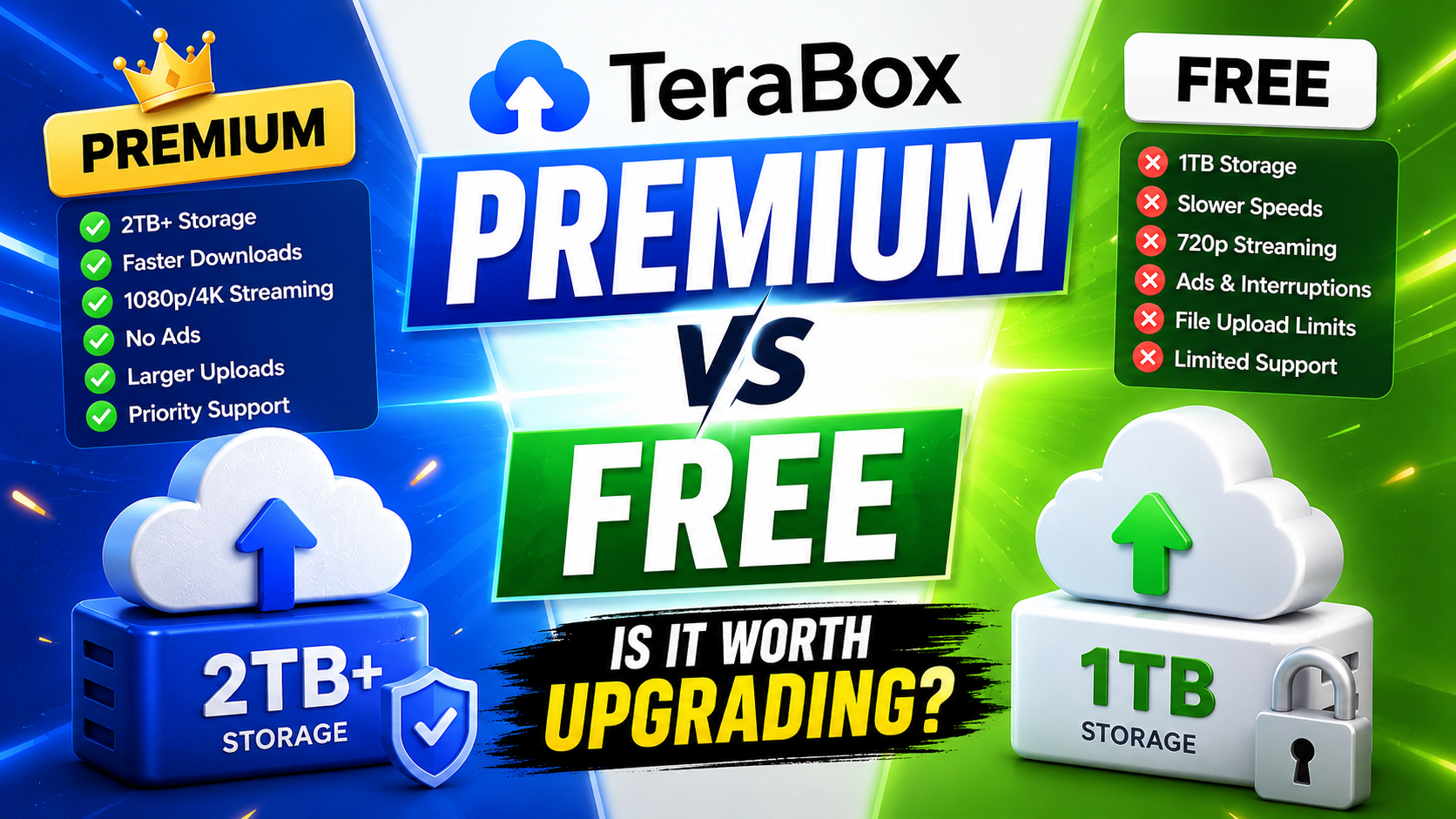
TeraBox Free vs Premium: Is Upgrading Really Worth It in 2026?